Media assets (assets)
Media assets are entities containing metadata about digital media content (essence/HighRes). Medialoopster differentiates between Audio-Assets (audible content), Image-Assets (still images) and Video-Assets (motion pictures).
Assets creation
An asset is automatically created via:
- user activities in the browser interface:
- upload
- live recording via the ingest control
- advanced administration:
- scan all files over a watchfolder
- external tools using our API import functions
Users require the upload_<asset_type>asset permission for upload and import.
A list of actions is automatically executed at asset creation, from which a few can be manually requested in the administration interface as well:
- the asset type determined via the predefined allowed file extensions
- detect matching device: assigns to the asset a device
- whose path matches the path of the asset's essence (HighRes), or
- the device corresponding to the asset type, from the production setup
- probe source file:
- extracts the technical metadata out of an audio or video asset essence, or the EXIF metadata and image size out of an image asset
- stores the metadata in the asset technical details
- transcoding of the HighRes, proxy generation and video shots detection
- generate video shot thumbnails can be requested manually as well:
- if the video asset came with a list of shots, this action will generate a thumbnail for each shot
- generate video shot thumbnails can be requested manually as well:
Assets in the administration interface
The sections in the assets administration interface are:
- general fields for all assets
- general fields for all media assets
- general fields for audio/image/video assets
- technical details: a synchronized copy from the audio/image/video asset technical details administration interface
- annotations: a synchronized copy from the annotations administration interface
- archive details
Adding, deleting and changing assets is here allowed, however assets should not be manually added, and manual change is safe only for the name, dates and description fields.
In addition, one can perform the following actions via the administration interface, after selecting one or more assets:
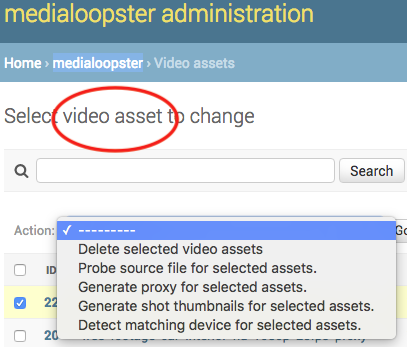
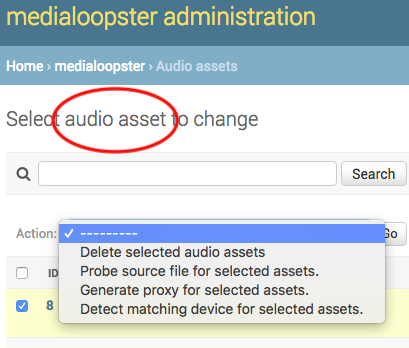
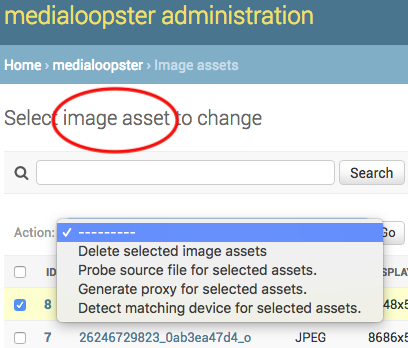
More details about deleting assets in the housekeeping.
Options
Name | Required | Description |
|---|---|---|
| Name | Yes | Internal asset name, by default the name of the original media file. It can be edited via the administration interface. |
| Description | No | Longer description text. Can be edited here or via the user interface. |
| Date created/added/modified/deletion | No | The corresponding dates. The date created and deletion date can be manually changed. The deletion date is displayed in the user interface via "On hold until". |
| Locked by | No | The ID of the user that is at the moment editing the asset in the user interface. No other user can edit the asset until that user finishes editing via "Unlock" in the user interface. |
| Asset status | Yes | The state where the asset is during asset creating, probing, proxy generation, various file transfers, etc. |
| Editing status | Yes | If the editing via the user interface is still "In progress" or "Done". It goes hand in hand with "Locked by". |
| Approval status | Yes | "Approved" or "Not approved" for editorial purpose, depending on what the users set via the user interface. |
| Production | Yes | The production pool where the asset belongs. |
| Custom metadata | No | If a user edited via the user interface any of the custom metadata added to the system via the custom metadata administration interface, it will appear here. |
| Codec name | No | Encoding used. |
| (Pixel) height/width | No | The height and width in pixels for the video/image essence. |
| Filepath/Filename | Yes | The absolute path to the HighRes file (also called essence), as seen by medialoopster, for example /mnt/medialoopster/nb/Highres/Video/free-footage-car-interior-hd-1080p-25fps-proxy.mxf. The file name is by default the asset name. The field remains set even if the HighRes was in the meantime deleted (for example via archiving), in order for the file to be recopied at this destination, via a restore from archive. |
| Device | Yes | The automatic allocated device name. |
| Is in archive | No | It is automatically set to true if the asset was once archived via the user interface. If it was once set to true, it will remain true for ever, since the archive copies are never deleted. |
| Is in production | No | It is set to true if the asset has a HighRes file (it also means online). It can become automatically false (it also means offline) if for example it was archived with "delete afterwards" enabled. An offline asset can still be displayed, since its proxy file is not affected. |
| Duration | Yes | Total number of frames or seconds for the audio/video essence. |
| Offset frames | Yes | If you'd like to shift the whole video and its shots with a particular time, set the offset here in the format hh:mm:ss:frame. The total time and shots content will remain the same, it is not a cropping method. |
| Fps | Yes | Video frames per second, usually 24 or 25. |
| Proxy name | No | Name of the proxy file name, if the proxy generation was performed. It is by default the asset's name. |
| Proxy path | No | Path where the proxy file is stored, as seen by medialoopster. It has the format: /mnt/medialoopster/Proxy/<production_codename>/<audio/image/video>/<asset_id>/proxy |
| Proxy thumbnail | No | Path where the video shot thumbnails are stored, as seen by medialoopster. It has the format: /mnt/medialoopster/Proxy/<production_codename>/video/<asset_id>/shot |
| Format/Format long name | No | The file extension, for example mxf, jpeg, and their description. |
| Abstract/Transcript | No | Metadata fields editable when the user clicks on "Edit" via the user interface. |
| Color mode/camera manufacturer/camera model/shooting date | No | Fields specific to image assets, editable via the user interface as well, for example : RGB, Canon, Canon EOS 5DS, 05.05.2016 16:53:43. |
| User comment | No | Field specific to image assets. The user can insert here whatever notes he wishes, via the user interface "Edit". |
| Title/artist/album/genre | No | Fields specific to audio assets, editable via the user interface as well. |
| Keywords | No | To the left is the pool of all keywords added to the system via the keywords administration interface. To the right are the keywords already allocated from this pool via the user interface to the asset, or picked here from the left. |
| Size | No | Size in bytes of the HighRes file. |
| Start time | No | The beginning time of the audio/video essence. It is not editable. |
| Bit rate | No | Bitrate for the audio/video essence, in bps units. |
| Annotations | No | Fields added for video assets if they received annotations via the user interface. The section is synchronized with the annotations administration interface. |
| Archive: archive handle | Yes | If the asset was archived, this is the absolute path to the archived copy of the HighRes file, as seen by medialoopster, for example /mnt/medialoopster/nb/Archive/_#_mnt_#_medialoopster_#_nb_#_Highres_#_Video_#_sintel_trailer-1080p.mxf |
| Archive: Archive connector name | Yes | If the asset was archived, this is the name of the connector used. |
| Archive: Original path | Yes | Original path of the HighRes file. |
| Archive: Archive type | Yes | One of the 3 types of archiving. |
| Archive: Tape name/label/barcode | No | Tape archiving specific fields. |
| Archive: | No | Archiware P5 archiving specific fields. |
Assets in the management interface
In the management interface at "Current assets" (see more details in the user guide), one can again display, filter, delete and change the delete date on the assets.
More details about deleting assets in the housekeeping.