Search configuration
Medialoopster uses two methods within its search in the browser user interface:
full-text

- extended: via locally defined search field mappings
Full-text search
It allows you to search for values in assets without knowing which fields contain the value. The text will be searched within all assets of the currently selected asset type, production and device, as contained case-insensitive within the assets' fields, then the result displayed in the left panel.
By default, only the assets' names, and in addition the title, artist and album for audio assets, are searched, as defined by settings.DJANGO_SEARCH["PRIMARY_SEARCHFIELD"]. In case Elasticsearch is enabled, all fields are considered and the result sorted in addition by relevance:
- first results have a definite match
- the last results are for the input text modified with 1 character; this is called
fuzzy search, useful when you mistyped 1 character.
It is thus more probable for an asset to turn up at the top of the search result, if more of its fields have been filled up.
Mode details in the user handbook.
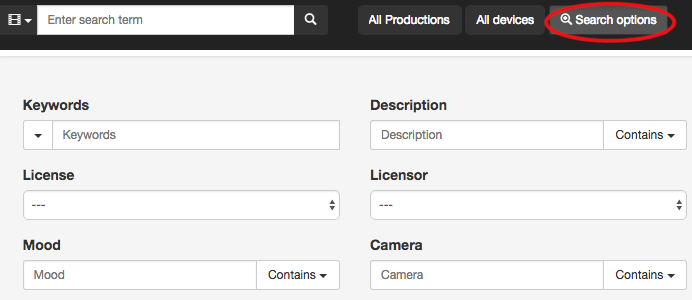
Extended search - search field mappings
They allow you to map an input search field to an asset's Elasticsearch key. Then the value entered by the user in one of the search boxes will be searched within assets for that corresponding asset field only. There is no fuzzyness involved here.
You must pre-populate the model via the administration interface with search criteria important for your company, for example: description, last added, last modified, is in archive, is in production, editor's name, cutter's name, title, artist, etc.
Elasticsearch is enabled, all search field mappings are functional. Options
Name | Required | Description |
|---|---|---|
| Label | Yes | A text to be displayed in the browser as search criteria, for example Last added. |
| Enabled | No | Boolean value indicating if the criteria is visible on the browser user interface search. It is preferred to disable the mapping, rather than deleting it. |
| Type | Yes | Asset type for which the search criteria applies: |
| Elasticsearch key | Yes | Name of the asset field by which the search is to be made, for example |
| Input type | Yes | The input type: |
| Text: field lookups | No | Field indicating between what types of searches can the user choose: input text to be contained, matched exactly, or both. |
| Text: default field lookup | No | Default way of field lookup. |
| Select: select field | No | Select if the search is to be made forLicense orLicensors. |
| Boolean: true/false display value | No | How to display true / false in the search box, for the user to understand the use case better, for example as Yes/No, or True/False. |
If you already added custom metadata to the system, you can use them as well as search fields, one custom metadata per search field mapping:
- Type: the asset type of the custom metadata set
- Elasticsearch key:
meta_field_store.<custom_metadata_name>
If you already added keywords via the administration interface, you can add one search field mapping for all keywords: